
What is changing
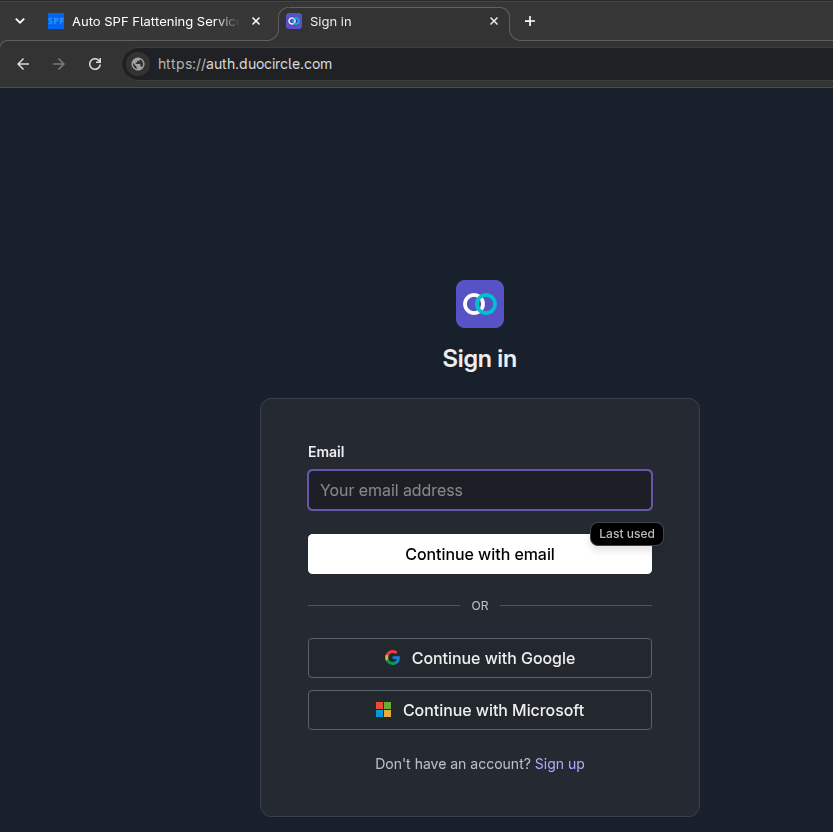
AutoSPF now uses the shared DuoCircle sign-in page. When you sign in you will be taken to auth.duocircle.com, and after signing in you land on your AutoSPF dashboard as usual. The same sign-in works across DuoCircle products, so you only need one set of credentials.
Signing in
Enter your email address and choose "Continue with email".
On the next screen, enter the same password you use today. Nothing needs to be reset or set up in advance.
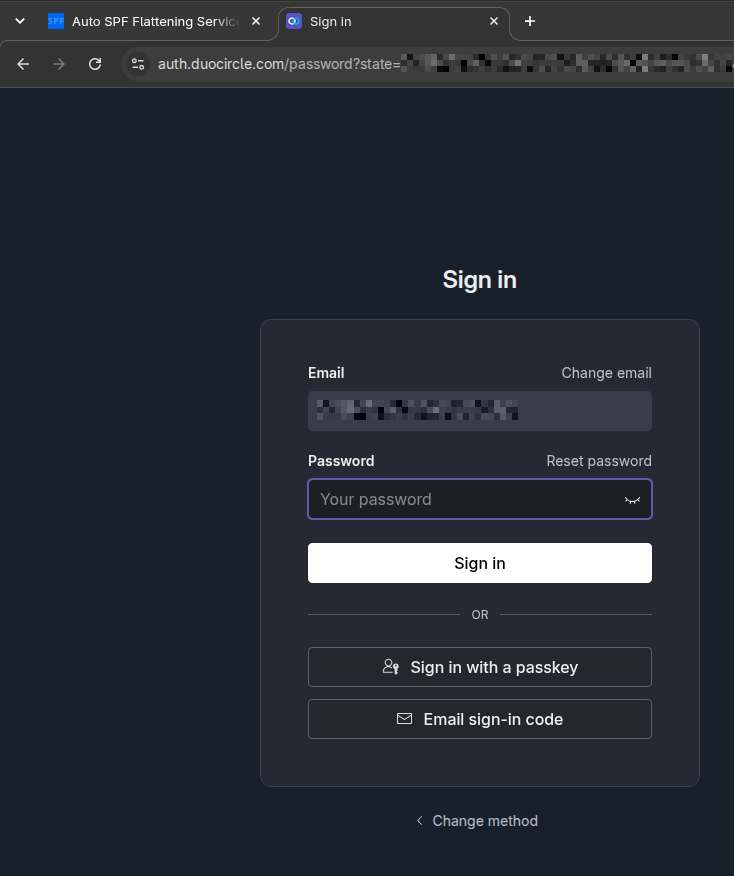
You can also sign in with a passkey, or choose "Email sign-in code" to have a one-time code sent to you instead of using a password. If your organisation uses Google Workspace or Microsoft 365, "Continue with Google" or "Continue with Microsoft" works too, as long as it is the same address as your AutoSPF account.
If you use two-factor authentication
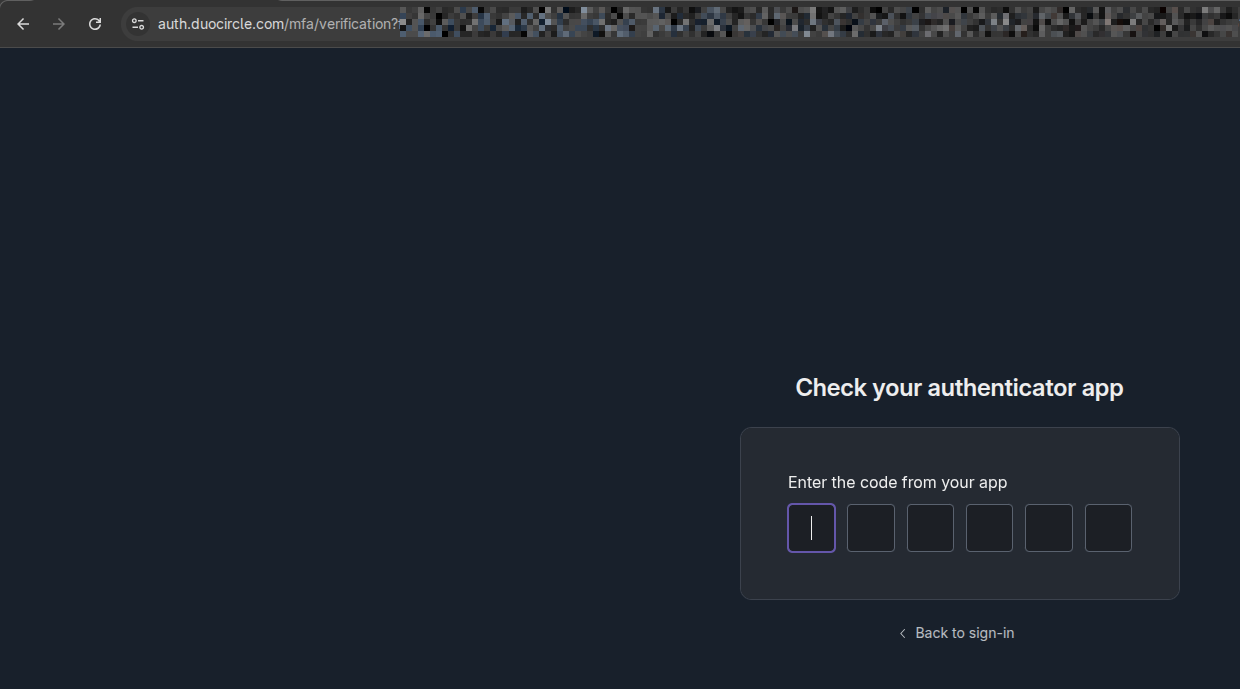
Your existing authenticator app carries over. You will be asked for a code exactly as before, and the same app and the same codes keep working. There is nothing to re-scan or re-enroll.
If you used Authy
Authy is no longer supported as a two-factor method, so two-factor authentication has been removed from the accounts that were using it. If that was you, sign in with your email address and password as normal — you will not be asked for a code.
We recommend setting up an authenticator app again from the account portal so your account stays protected. You can still use the Authy app itself, it simply needs to be added the new way. See Enabling two-factor authentication.
If your organisation uses single sign-on
Enter your work email address and you will be sent straight to your company's identity provider. There is nothing new to configure, and your administrator does not need to change your existing connection.
If you forget your password
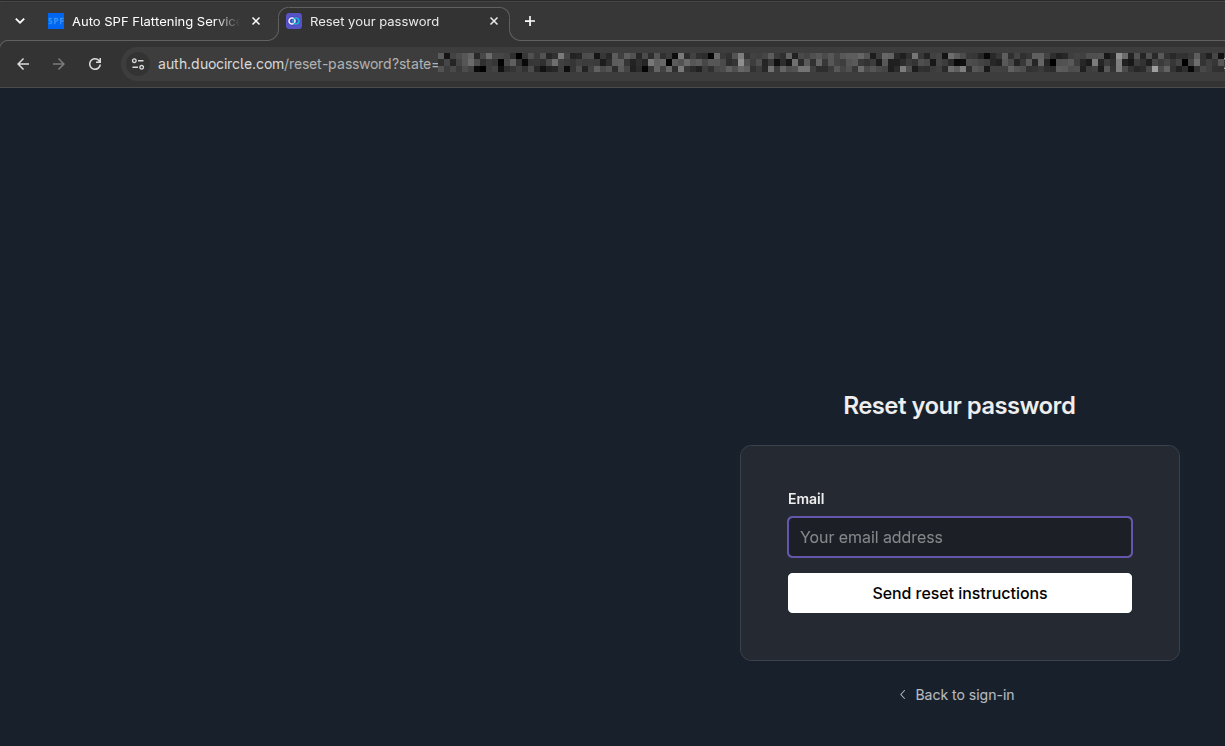
Use "Reset password" on the password screen. The reset email now comes from DuoCircle rather than AutoSPF, and the link works the same way.
Your account settings have moved
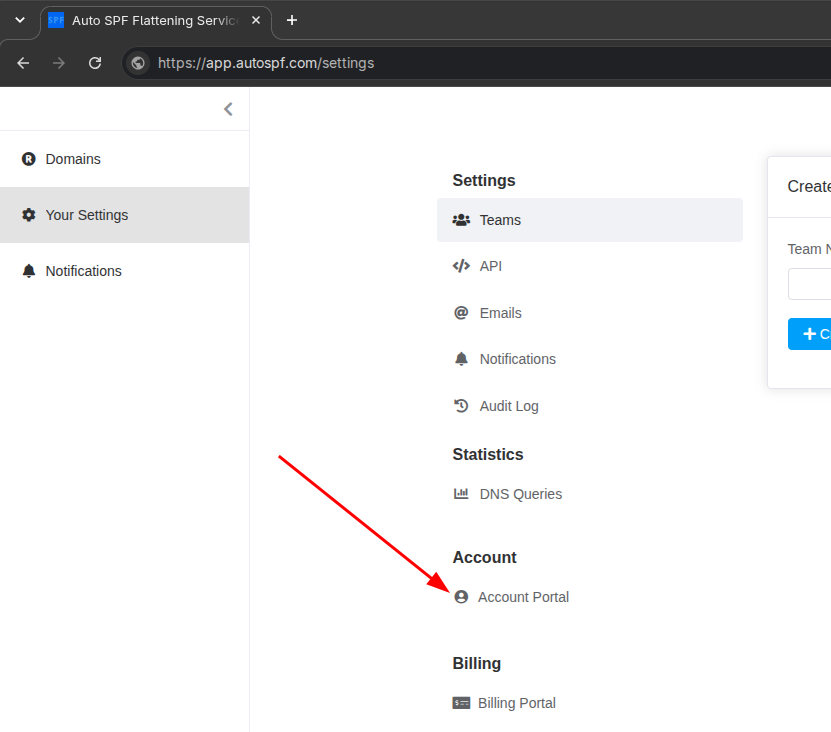
Your profile, password, two-factor settings and active sessions are now in your DuoCircle account portal. Open it from AutoSPF under Your Settings, in the Account section.
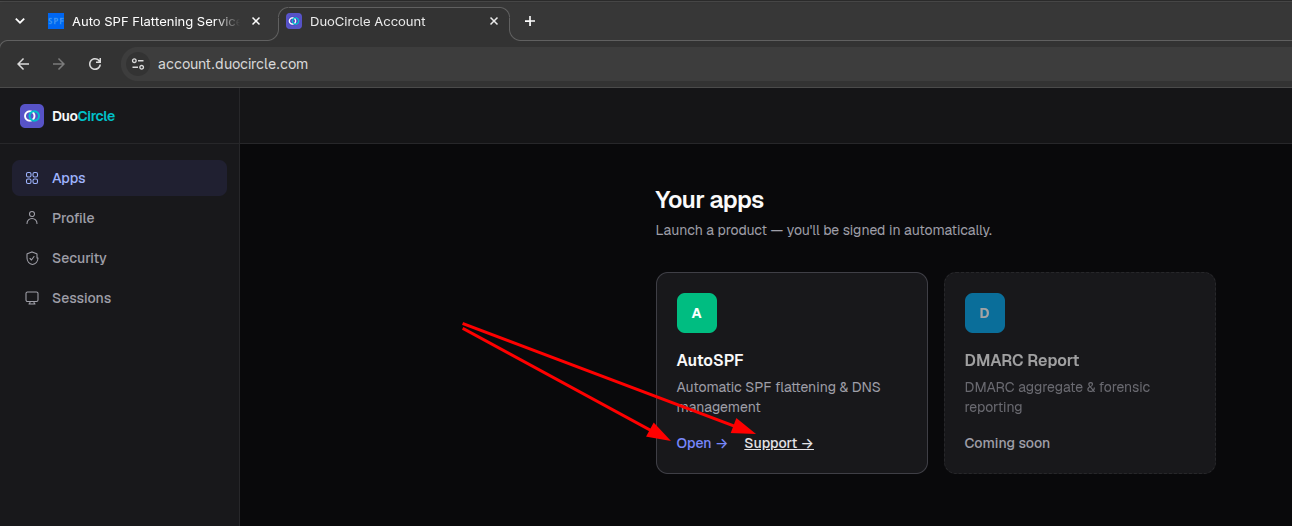
From the portal you can jump straight back into AutoSPF or open its support portal, without signing in again in either case.
Domain and SPF management stays exactly where it is, inside AutoSPF. Only account and security settings moved.
If you have trouble signing in
- Check that you are using the email address associated with your AutoSPF account.
- If your password is not accepted, use "Reset password" rather than trying repeatedly.
- If you are not sure of your password — for example if your account was set up for you when you subscribed — choose "Email sign-in code" on the password screen. We will email you a one-time code, and you can set a password afterwards in the account portal.
- If your authenticator codes are rejected, contact support and we will help you re-enroll.